
Greenshot Configuration
Download from:
Storage Location
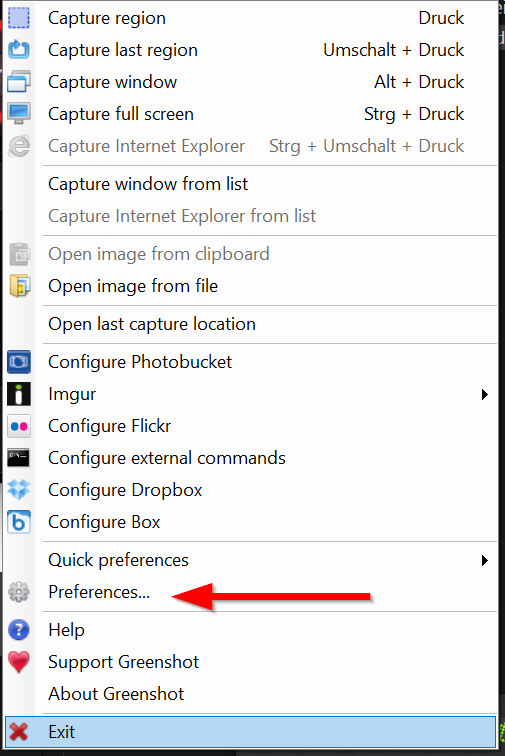
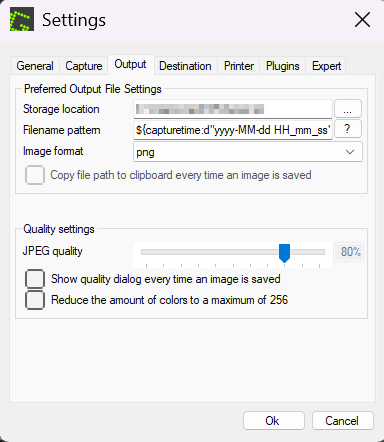
Right-click the Greenshot icon in the taskbar → Preferences → Output
Change the Storage location to your desired folder. The default saves to the Desktop.
Destinations
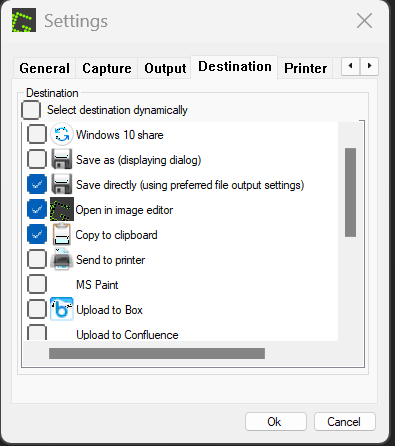
Uncheck:
Select destination dynamically— disables the destination dialog that would otherwise appear after every screenshot
Check as needed:
Save directly— saves the screenshot directly to the configured storage locationOpen in image editor— opens the screenshot in Greenshot's editor immediately (useful if you annotate screenshots frequently)Copy to clipboard— copies the screenshot to the clipboard instantly
Tips
Straight arrows: Hold Shift while drawing an arrow to constrain it to a straight line.
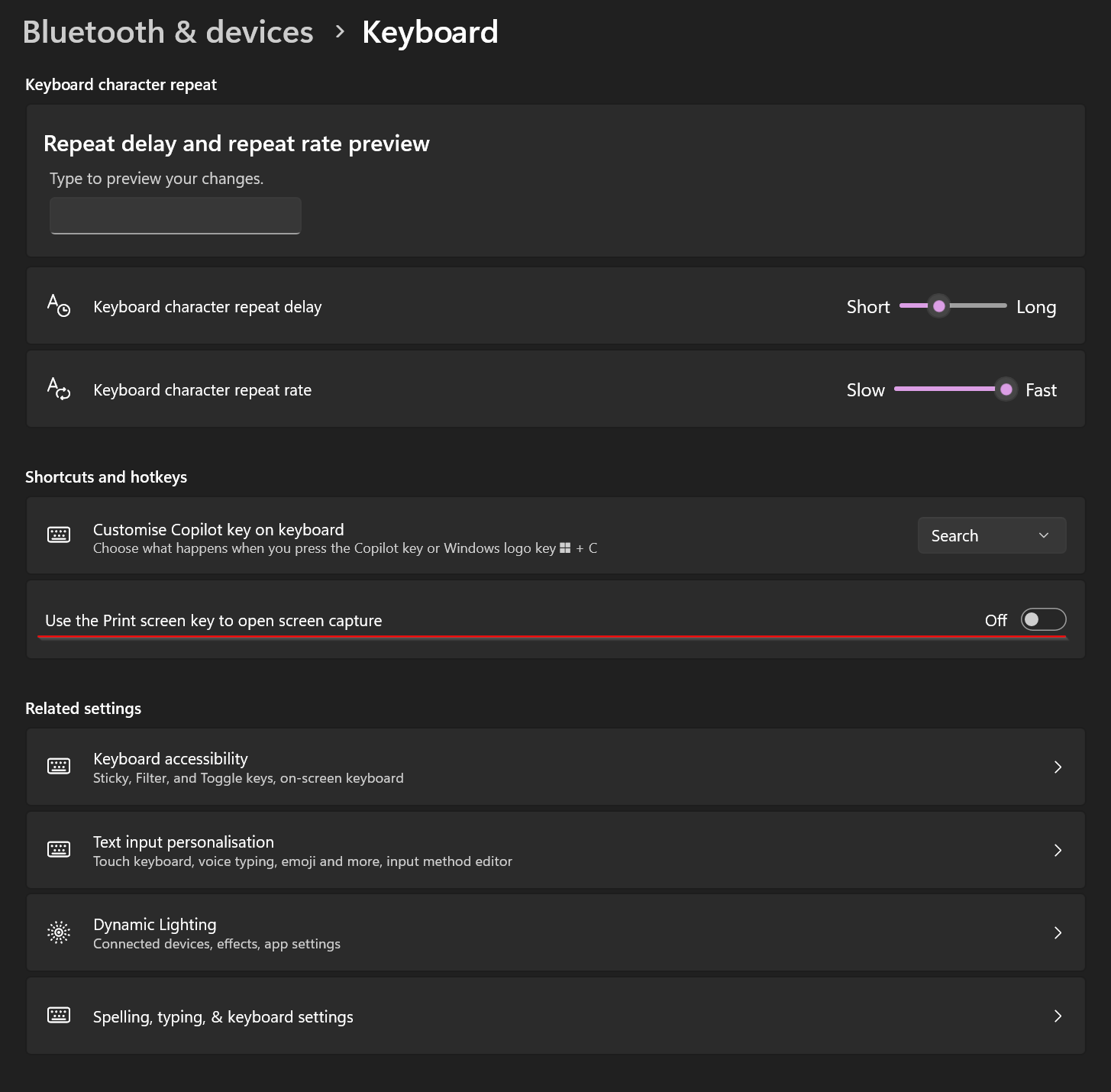
Freeing Up the Print Key
By default, Windows may intercept the Print key. To hand it over to Greenshot:
Settings → Bluetooth & devices → Keyboard → disable "Use the Print key to open..."
No comments to display
No comments to display